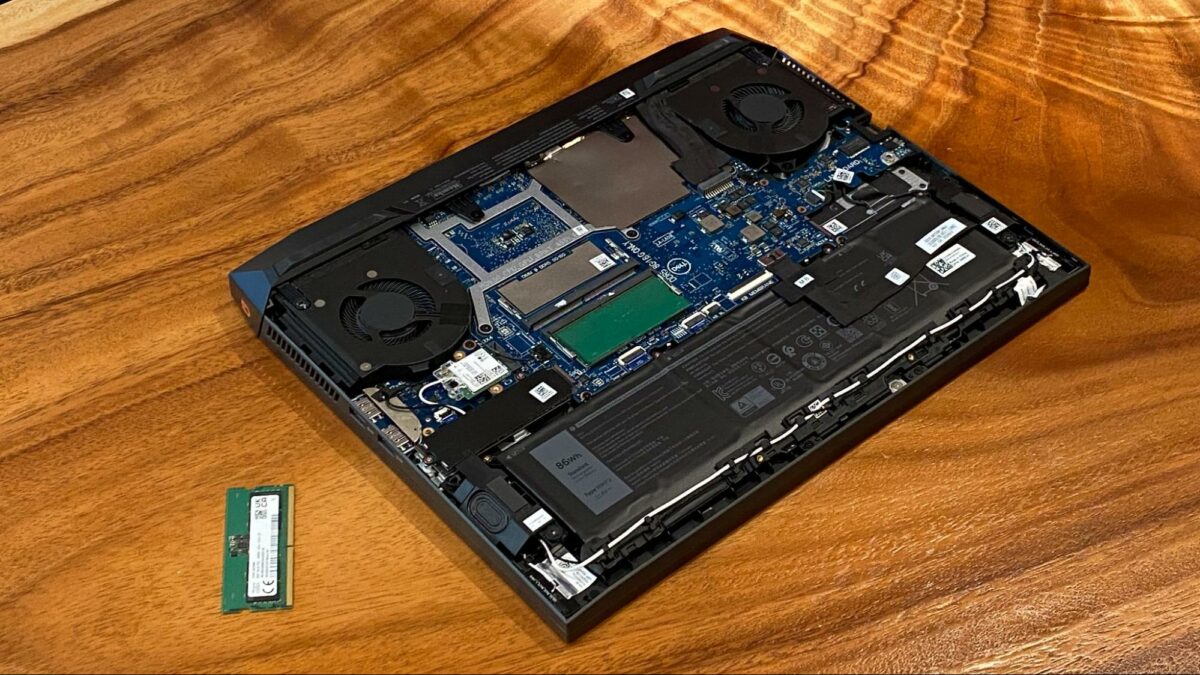
Upgrading RAM (Random Access Memory) on a laptop can significantly improve performance, especially when multitasking or running memory-intensive applications. Here’s a detailed guide on how to upgrade RAM on a laptop:
Introduction to Upgrading RAM on a Laptop
- Understanding RAM
- Explanation of RAM and its role in computer performance
- Benefits of upgrading RAM for laptops (faster multitasking, improved responsiveness)
- Determining Compatibility and Requirements
a. Checking Current RAM
- Identifying the current amount and type of RAM installed in the laptop
- Accessing system information through operating system tools (e.g., Task Manager on Windows, Activity Monitor on macOS)
b. Checking Laptop Specifications
- Determining maximum RAM capacity supported by the laptop
- Verifying RAM type (DDR3, DDR4) and speed compatibility with the laptop’s motherboard
Steps to Upgrade RAM on a Laptop
- Preparing for the Upgrade
a. Gathering Necessary Tools
- Tools required: new RAM module(s), small screwdriver (usually Phillips), antistatic wrist strap (optional)
b. Choosing the Right RAM
- Selecting compatible RAM modules based on laptop specifications (capacity, type, speed)
- Ensuring the RAM modules match existing RAM characteristics if adding to existing memory
- Locating and Accessing RAM Slots
a. Identifying RAM Slots
- Locating RAM slots on the underside of the laptop or beneath a service panel
- Consulting laptop manual or manufacturer’s website for specific instructions
b. Preparing the Laptop
- Shutting down the laptop and disconnecting it from power source
- Removing the laptop battery (if removable) to avoid electrical hazards
- Removing Existing RAM (If Necessary)
a. Opening RAM Compartment
- Removing screws or latches securing the RAM compartment cover
- Sliding or lifting the cover to access RAM modules
b. Removing Existing RAM Modules
- Releasing retention clips or levers holding RAM modules in place
- Gently pulling out the RAM module(s) at a 45-degree angle
- Installing New RAM Modules
a. Inserting New RAM
- Aligning the notch on the RAM module with the key in the RAM slot
- Inserting the RAM module at a 45-degree angle and pressing down until it clicks into place
b. Securing RAM
- Ensuring the retention clips or levers lock the RAM module securely in place
- Closing the RAM compartment cover and securing it with screws or latches
- Testing and Verifying
a. Powering On the Laptop
- Reinserting the laptop battery (if removed) and reconnecting the power source
- Powering on the laptop to initiate the boot process
b. Checking System Recognition
- Accessing system information to verify the new RAM capacity and configuration
- Confirming that the laptop recognizes the upgraded RAM in the BIOS or operating system
Troubleshooting and Tips
- Troubleshooting Common Issues
a. RAM Compatibility Issues
- Addressing compatibility issues if the laptop does not recognize new RAM
- Checking for BIOS updates or reseating RAM modules if necessary
b. Handling Static Electricity
- Using an antistatic wrist strap or working on a grounded surface to prevent static discharge
- Avoiding touching the gold contacts of the RAM modules
- Safety and Maintenance
a. Regular Maintenance
- Monitoring laptop temperatures and ensuring proper ventilation around RAM modules
- Cleaning dust from laptop vents and components to maintain optimal performance
Conclusion
Upgrading RAM on a laptop is a straightforward process that can enhance overall performance and responsiveness, especially for tasks requiring ample memory resources. By following this comprehensive guide, users can successfully upgrade RAM on their laptops, improving productivity and extending the lifespan of their devices.