Resetting a router is a basic troubleshooting step that can resolve network issues or restore the router to its default settings. Here’s a detailed guide on how to reset a router:
Introduction to Resetting a Router
- Purpose of Router Reset
- Explanation of why resetting a router may be necessary
- Common scenarios where resetting can resolve network problems
- Types of Resets
a. Soft Reset
- Definition of a soft reset and its implications
- When to perform a soft reset and how it affects the router
b. Hard Reset (Factory Reset)
- Definition of a hard reset or factory reset
- Circumstances where a hard reset is necessary
Steps to Reset a Router
- Preparing for Reset
a. Gathering Necessary Equipment
- Identifying the router model and accessing the user manual
- Locating the reset button on the router
b. Backup Configuration (If Applicable)
- Saving current router settings or configurations if needed
- Understanding that a hard reset will erase all customized settings
- Performing a Soft Reset
a. Accessing Router Interface
- Logging into the router’s web interface using a web browser
- Entering the router’s IP address (commonly 192.168.1.1 or 192.168.0.1)
b. Navigating to Reset Option
- Finding the reset option within the router’s administrative settings
- Selecting soft reset or reboot option and confirming the action
- Performing a Hard Reset (Factory Reset)
a. Locating Reset Button
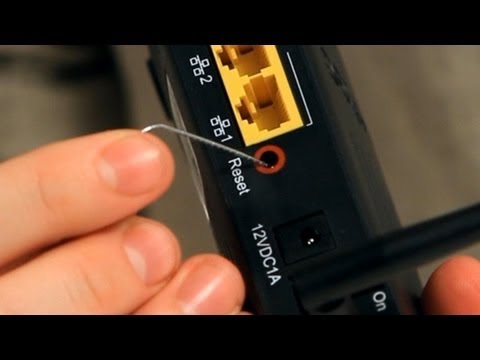
- Identifying the reset button on the router (typically a small, recessed button)
- Using a paperclip or similar tool to press and hold the reset button
b. Executing Hard Reset
- Pressing and holding the reset button for 10-30 seconds (consult router manual for exact duration)
- Observing router lights for confirmation that reset process has started
- Reconfiguring the Router
a. Waiting for Reset
- Allowing the router time to reboot and reset to factory default settings
- Patience during the process as it may take several minutes
b. Accessing Router Settings
- Logging back into the router’s web interface using default credentials (check router manual)
- Setting up the router from scratch, including network name (SSID) and password
- Testing the Network
a. Verifying Internet Connection
- Connecting devices to the router’s Wi-Fi network
- Testing internet connectivity to ensure the reset resolved the issue
Troubleshooting and Tips
- Common Issues
a. Router Not Responding After Reset
- Troubleshooting steps if the router fails to reset or reboot properly
- Contacting technical support or referring to manufacturer guidelines for assistance
b. Recovering Configuration
- Restoring backed-up router configurations or settings after a hard reset
- Ensuring all devices reconnect to the network with the new settings
- Safety and Maintenance
a. Preventing Data Loss
- Ensuring all critical data and settings are backed up before performing a hard reset
- Using caution with router reset to avoid accidental data loss or network disruption
Conclusion
Resetting a router is a straightforward process that can resolve network issues and restore optimal performance. By following this comprehensive guide, users can effectively perform both soft and hard resets on their routers, ensuring reliable connectivity and troubleshooting network problems when needed.