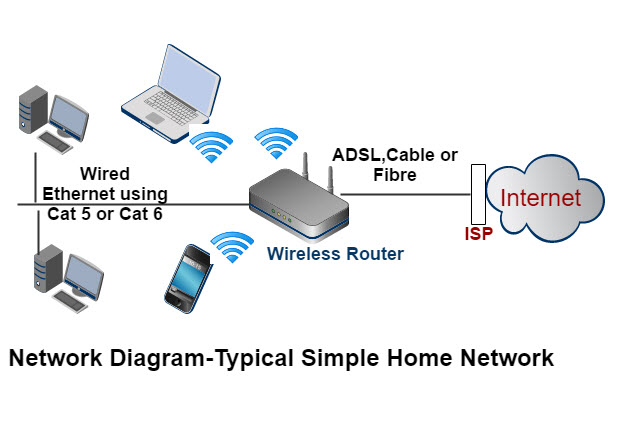
Setting up a home network is essential for connecting multiple devices within a household to share resources, such as internet access, files, and printers. Here’s a comprehensive guide on how to set up a home network:
Introduction to Setting Up a Home Network
- Understanding Home Networks
- Definition of a home network and its benefits
- Types of devices that can be connected in a home network (computers, smartphones, printers, smart devices)
- Planning Your Home Network
a. Assessing Needs
- Determining the number of devices to be connected
- Identifying the locations where network access is required (e.g., home office, living room)
b. Choosing Network Equipment
- Selecting a router suitable for home network size and internet speed
- Deciding on wired (Ethernet) and wireless (Wi-Fi) network components
Steps to Set Up a Home Network
- Setting Up the Router
a. Router Placement
- Choosing a central location for the router to ensure optimal coverage
- Considering factors like interference and signal strength
b. Connecting to the Modem
- Connecting the router to the modem using an Ethernet cable
- Powering on the modem and router
- Configuring Network Settings
a. Accessing Router Settings
- Logging into the router’s administration interface (typically via a web browser)
- Using default login credentials or setting up new ones
b. Setting Network Name (SSID) and Password
- Changing the default network name (SSID) to a unique identifier
- Creating a strong network password to secure the Wi-Fi network
- Configuring Wi-Fi Settings
a. Setting Up Wi-Fi Encryption
- Choosing a Wi-Fi security protocol (e.g., WPA2-PSK) for encryption
- Configuring wireless security settings to protect network data
b. Guest Network Setup
- Enabling a guest network for visitors with limited access to main network resources
- Setting up a separate SSID and password for the guest network
- Connecting Devices
a. Connecting Devices Wirelessly
- Connecting computers, smartphones, tablets, and smart devices to the Wi-Fi network
- Entering the network password when prompted on each device
b. Connecting Devices via Ethernet
- Connecting devices that require stable and high-speed connections directly to the router using Ethernet cables
- Configuring network settings on devices if necessary
- Testing the Network
a. Checking Internet Connectivity
- Verifying internet access on connected devices
- Troubleshooting connectivity issues if internet access is not available
b. Testing File Sharing and Printer Access
- Testing file sharing between connected computers or devices
- Setting up printer sharing to enable printing from multiple devices
Network Security and Maintenance
- Ensuring Network Security
a. Updating Router Firmware
- Checking for and installing firmware updates regularly to protect against security vulnerabilities
- Enabling automatic updates if available
b. Using Firewalls and Antivirus Software
- Configuring router firewalls and installing antivirus software on connected devices
- Protecting the network from malware and unauthorized access
- Network Expansion and Troubleshooting
a. Adding Network Devices
- Adding new devices to the network as needed (e.g., smart home devices, additional computers)
- Configuring network settings for new devices to ensure compatibility and security
b. Troubleshooting Network Issues
- Troubleshooting common network problems such as slow speeds or dropped connections
- Consulting router documentation or contacting technical support if issues persist
Advanced Network Features
- Advanced Network Features
a. Quality of Service (QoS) – Configuring QoS settings to prioritize certain types of network traffic (e.g., video streaming, online gaming) – Optimizing network performance for specific applications
b. Network Storage and Backup – Setting up network-attached storage (NAS) for centralized file storage and backup – Configuring automatic backups of important data to NAS or cloud storage
Conclusion
Setting up a home network allows for efficient sharing of resources and internet access among multiple devices within a household. By following this comprehensive guide, users can establish a secure and reliable home network infrastructure to meet their connectivity needs effectively.