USB 3.0 Interference: How to Stop External Hard Drives from Disconnecting Your Wireless Mouse
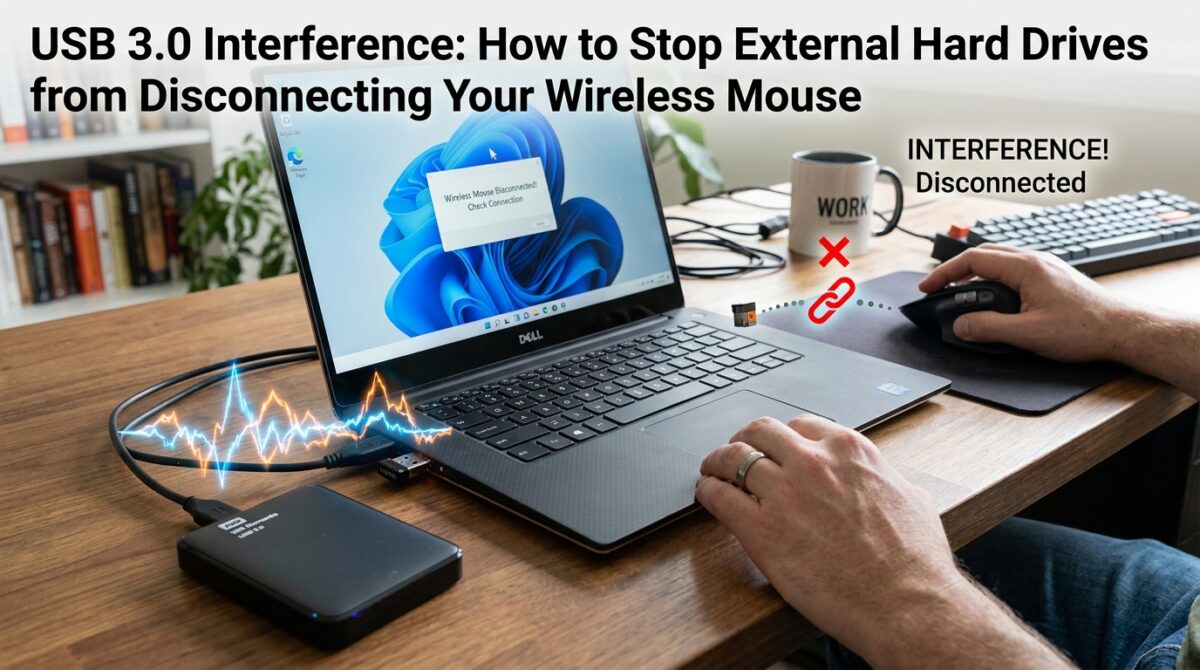
A significant amount of modern computing is dependent on USB 3.0 ports for the purpose of transferring data quickly. This is especially true when utilizing external hard drives for backups, media storage, or the transmission of huge files. Additionally, USB 3.0 has the potential to accidentally interfere with adjacent wireless devices that operate on the 2.4 GHz band, such as keyboards and mice. This is despite the fact that it delivers excellent speeds. It is common for users to observe that their wireless mouse stutters, disconnects, or has spikes in latency while a USB 3.0 external hard drive is operating. The electromagnetic noise that is created by the USB 3.0 interface is the actual source of this interference. This noise has the potential to overlap with the frequency at which wireless devices operate. In order to maintain dependable wireless device performance alongside high-speed USB storage, it is vital to have a solid understanding of the underlying reasons, tactics for mitigating those causes, and the correct hardware configuration.
The Reasons Why USB 3.0 Causes Problems for Wireless Devices
For reasons related to high-speed data communication, USB 3.0 ports produce radio frequency noise in the 2.4–2.5 GHz region. Interference may occur between wireless mice and keyboards because this frequency range overlaps with the band that is utilized by a large number of wireless mice and keyboards. Electromagnetic radiation from active USB 3.0 devices has the potential to interfere with communication between the wireless dongle and the peripheral, which may result in stuttering, lag, or momentary disconnections depending on the circumstances. There are a number of factors that contribute significantly to the severity of interference, including the quality of the cable, the positioning of the device, and shielding. When it comes to overcoming connection concerns, the first step is to acknowledge that USB 3.0 is not intrinsically flawed, but rather prone to producing electromagnetic noise.
How to Position the Wireless Dongle to Achieve the Best Possible Reception
Repositioning the wireless receiver for the mouse is one of the easiest methods to prevent interference using the USB 3.0 standard. You should ideally connect the dongle to a USB port on the front or top of the computer case. Alternatively, you might use a short USB extension cable to position the dongle in a location that is apart from USB 3.0 devices. An increase in the distance between the wireless receiver and high-speed data sources results in a considerable reduction in the electromagnetic noise that is impacting the signal. It is possible to further enhance signal integrity by altering the positioning of the dongle in relation to the line of sight between the mouse and the receiver. This will result in a smoother movement of the pointer and fewer disconnections.
The use of shielded ports and cables
There is a wide range of quality in USB cables and ports. Inadequately protected wires on external hard drives may make interference with wireless peripherals much more severe. It is possible to lessen the occurrence of electromagnetic noise by using shielded USB 3.0 cables of superior quality. Moreover, certain motherboards and laptops are equipped with USB ports that are better insulated, which are meant to reduce interference as much as possible. You may assist maintain consistent wireless connectivity without sacrificing data transfer performance by plugging key wireless devices into ports that have extra shielding or isolating high-speed external drives to ports on the other side of the device. Both of these options are available.
Efforts Made to Reduce Active USB 3.0 Noise
It is also possible to reduce interference by limiting the number of simultaneous high-bandwidth processes. It is possible to limit the amount of signal interruption that occurs while using a wireless mouse by, for instance, preventing the transfer of big files on USB 3.0 external devices. On top of that, several high-performance external drives enable users to make modifications to the power management settings or data transfer modes, which may help limit the amount of noise and emissions produced. Monitoring the activity of the device and alternating times of intensive use means that wireless peripherals will function more smoothly for activities that are more important.
Manually updating the drivers and firmware for wireless devices
It is possible to remedy problems that are brought on by signal interference by ensuring that the drivers and firmware for both the wireless mouse and the USB 3.0 controller are kept up to date. It is common practice for manufacturers to distribute updates in order to improve error correction, boost signal robustness, and optimize device communication protocols. The installation of the most recent software may reduce the number of dropouts and increase responsiveness, even when USB 3.0 devices are in use. When it comes to interference minimization, regular updates are a preventive step that complement both physical and positioning methods.
Various Wireless Frequencies and Devices Available Other than
Certain wireless mice operate on frequencies that are not inside the 2.4 GHz range, such as 5 GHz, and are thus unaffected by the interference that is caused by USB 3.0. Switching to a device that is capable of operating at either 5 GHz or dual frequencies might be a realistic answer for customers who are encountering connection troubles on a continuous basis despite having properly positioned and shielded their devices. In addition, selecting mice that have low-latency protocols or antennae of a high quality may increase the mouse’s resistance to external noise and electromagnetic interference, so assuring that they provide reliable input even while doing labor-intensive activities.
Tips for Organizing Your Workspace More Practically
Maintaining a distinct distinction between wireless peripherals and USB 3.0 devices is vital for ensuring the dependability of the system over the long run. When possible, try to avoid placing wireless receivers, USB hubs, and external hard drives in close proximity to one another. The use of specialized extension cords for either storage devices or wireless dongles enables appropriate positioning and eliminates interference. Furthermore, structuring cables in such a way as to limit overlapping or coiling of USB 3.0 lines may decrease electromagnetic radiation, so generating a workspace that is cleaner and free of interference, which is capable of supporting both high-speed data transmission and continuous peripheral functioning.
Keeping an eye on and testing the reliability of connectivity
Following the implementation of interference reduction measures, it is essential to subsequently test and monitor the operation of wireless devices. When users are actively transferring files via USB 3.0, they should monitor the responsiveness of the mouse and make adjustments to the locations or settings of the mouse if latency or disconnections continue. There are tools that can give objective insights into connection stability. These tools include measuring the intensity of wireless signals and tracking latency. Users are able to keep the functionality of a wireless mouse that is dependable while also taking advantage of the speed improvements offered by USB 3.0 external storage devices if they combine thorough testing, software upgrades, high-quality components, and physical layout (physical arrangement).
Enhancing Both the Speed and the Stability of the System
A diverse strategy is required in order to achieve a balance between the high-speed performance of USB 3.0 and the steady functioning of wireless peripherals. The optimal location of wireless receivers, the use of shielded connections, the reduction of simultaneous high-bandwidth activities, and the maintenance of equipment with the most recent updates all contribute to a reduction in the likelihood of interference. The use of these solutions assures smooth and constant performance for users who regularly depend on both wireless mice and external hard drives. This enables users to conduct things such as gaming, multimedia, and workflows in an efficient manner without experiencing annoying interruptions.