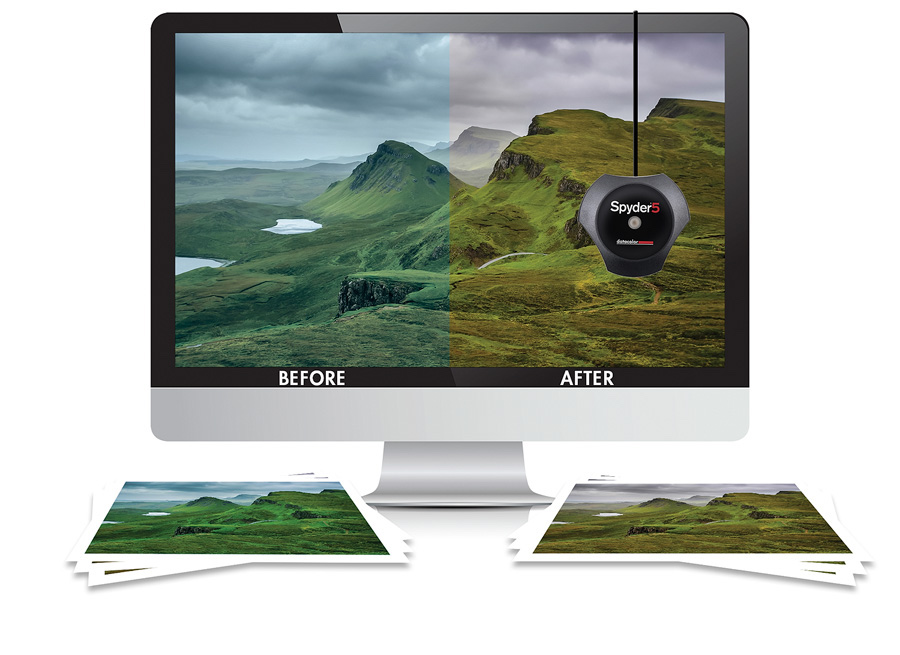
Calibrating a monitor is crucial for ensuring accurate color representation, brightness levels, and overall display quality, whether for professional graphics work, photography, or simply improving visual experience. Here’s a comprehensive guide on how to calibrate a monitor:
Introduction to Monitor Calibration
- Importance of Monitor Calibration
- Understanding why monitor calibration is essential for accurate color reproduction
- Benefits of calibration for different purposes (graphic design, photo editing, gaming)
- Types of Calibration Devices
a. Monitor Calibration Tools
- Introduction to hardware calibration devices (colorimeters and spectrophotometers)
- Software-based calibration tools and built-in OS utilities (Windows, macOS)
- Preparing for Calibration
a. Environment Considerations
- Choosing a well-lit room with consistent lighting conditions
- Minimizing glare and reflections on the monitor screen
b. Choosing Calibration Software
- Selecting appropriate calibration software compatible with the monitor and operating system
- Checking for updates or downloading the latest version of calibration software
Steps to Calibrate a Monitor
- Setting Up the Calibration Device
a. Connecting the Colorimeter
- Attaching the calibration device to the monitor screen according to manufacturer instructions
- Ensuring the sensor is securely attached and positioned correctly
- Launching Calibration Software
a. Opening Calibration Software
- Starting the calibration software on the computer
- Following on-screen instructions to begin the calibration process
- Adjusting Monitor Settings
a. Adjusting Brightness and Contrast
- Setting monitor brightness and contrast levels to optimal settings
- Using built-in monitor controls or software adjustments for precise adjustments
b. Color Temperature and Gamma
- Adjusting color temperature (typically expressed in Kelvin) to desired levels
- Setting gamma correction to match intended display characteristics (2.2 for general use)
- Calibrating Color
a. Color Calibration
- Running the color calibration process using the calibration software
- Displaying a series of color patches to measure and adjust color accuracy
b. White Point Calibration
- Adjusting white point settings to achieve accurate white balance
- Ensuring neutral grays and whites appear natural without color casts
- Profiling the Monitor
a. Creating a Monitor Profile
- Generating a monitor profile based on calibration results
- Saving the profile for use in color-managed applications and system-wide settings
- Verifying Calibration Accuracy
a. Verification Process
- Using verification tools or software to validate calibration accuracy
- Comparing color accuracy before and after calibration with test images or color patches
Troubleshooting and Tips
- Common Calibration Issues
a. Improper Calibration Results
- Troubleshooting steps for inaccurate colors or brightness levels after calibration
- Repeating calibration process or adjusting settings as needed
b. Maintaining Calibration
- Regularly recalibrating the monitor to maintain accurate color representation
- Updating monitor profiles periodically to account for environmental changes or aging monitors
- Advanced Calibration Techniques
a. Custom Calibration Settings
- Creating custom calibration settings for specific color spaces or workflows (sRGB, Adobe RGB)
- Fine-tuning monitor settings based on professional requirements
- Safety and Maintenance
a. Protecting Monitor and Calibration Device
- Handling calibration equipment with care to prevent damage or calibration errors
- Storing calibration profiles and settings securely for future reference
Conclusion
Calibrating a monitor enhances visual accuracy and ensures consistent color reproduction across different applications and environments. By following this comprehensive guide, users can effectively calibrate their monitors for improved viewing experiences, accurate color representation, and optimal performance in various professional and personal settings.